
LuCI Installation
This documentation is still being edited and may differ from the actual version.
This is the recommended path for most users and does not require SSH. Complete the pre-install network check first. At this point, the OpenWrt router itself should be able to reach IPv6 package feeds; client devices may still have no normal connectivity until Flet’H is installed and configured.
1. Add the public key
Section titled “1. Add the public key”- Open LuCI.
- Open
システム -> 管理 -> リポジトリの公開鍵. - Paste the following key into the public-key input box near the bottom.
- Click
公開鍵を追加.
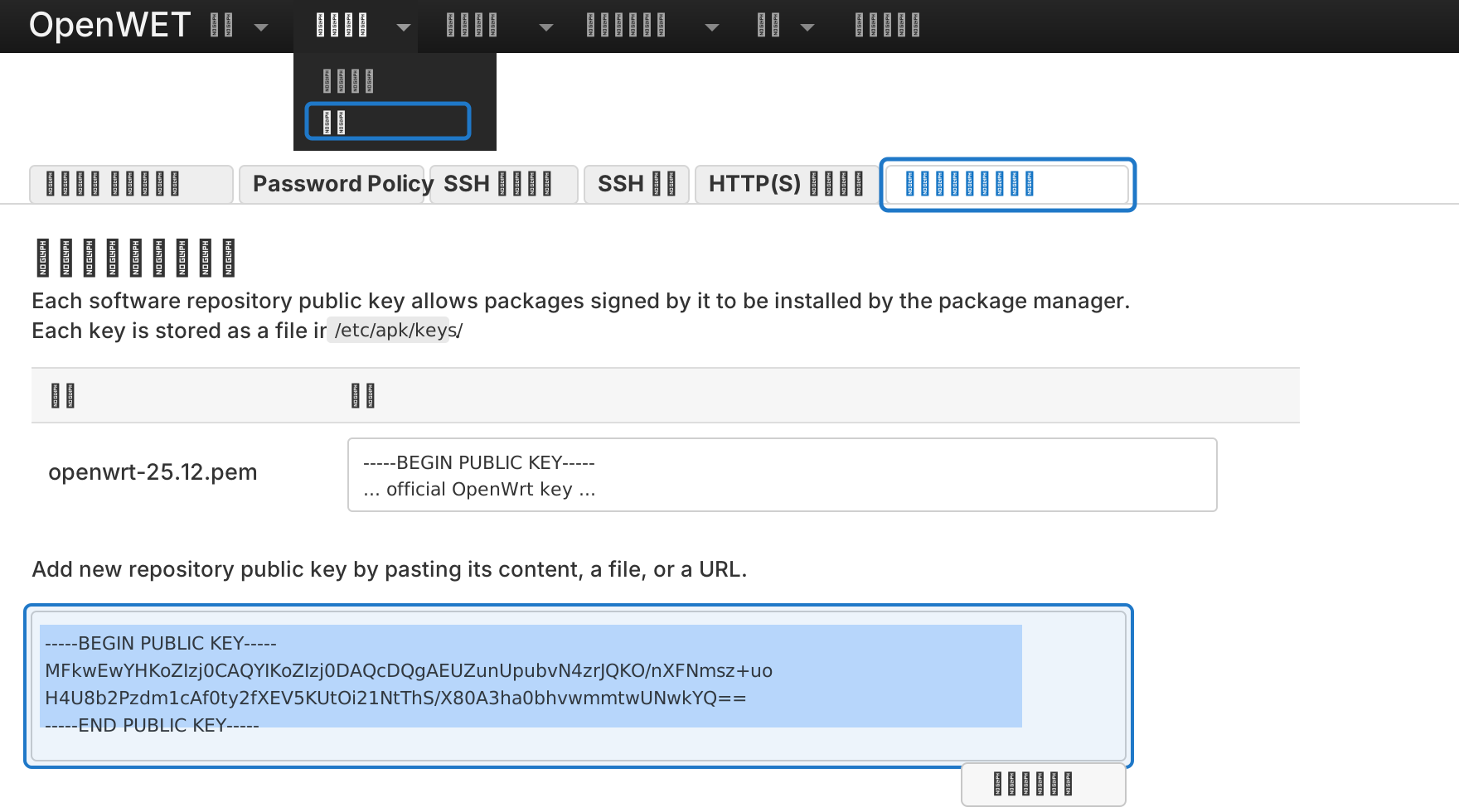
-----BEGIN PUBLIC KEY-----MFkwEwYHKoZIzj0CAQYIKoZIzj0DAQcDQgAEUZunUpubvN4zrJQKO/nXFNmsz+uoH4U8b2Pzdm1cAf0ty2fXEV5KUtOi21NtThS/X80A3ha0bhvwmmtwUNwkYQ==-----END PUBLIC KEY-----Completion check: LuCI shows no error, and the newly added key appears in the key list.
2. Add the custom feed
Section titled “2. Add the custom feed”- Open the LuCI web interface.
- Open
システム -> ソフトウェア. - Click
apk を構成. - Add this line to
/etc/apk/repositories.d/customfeeds.list. - Click
保存.
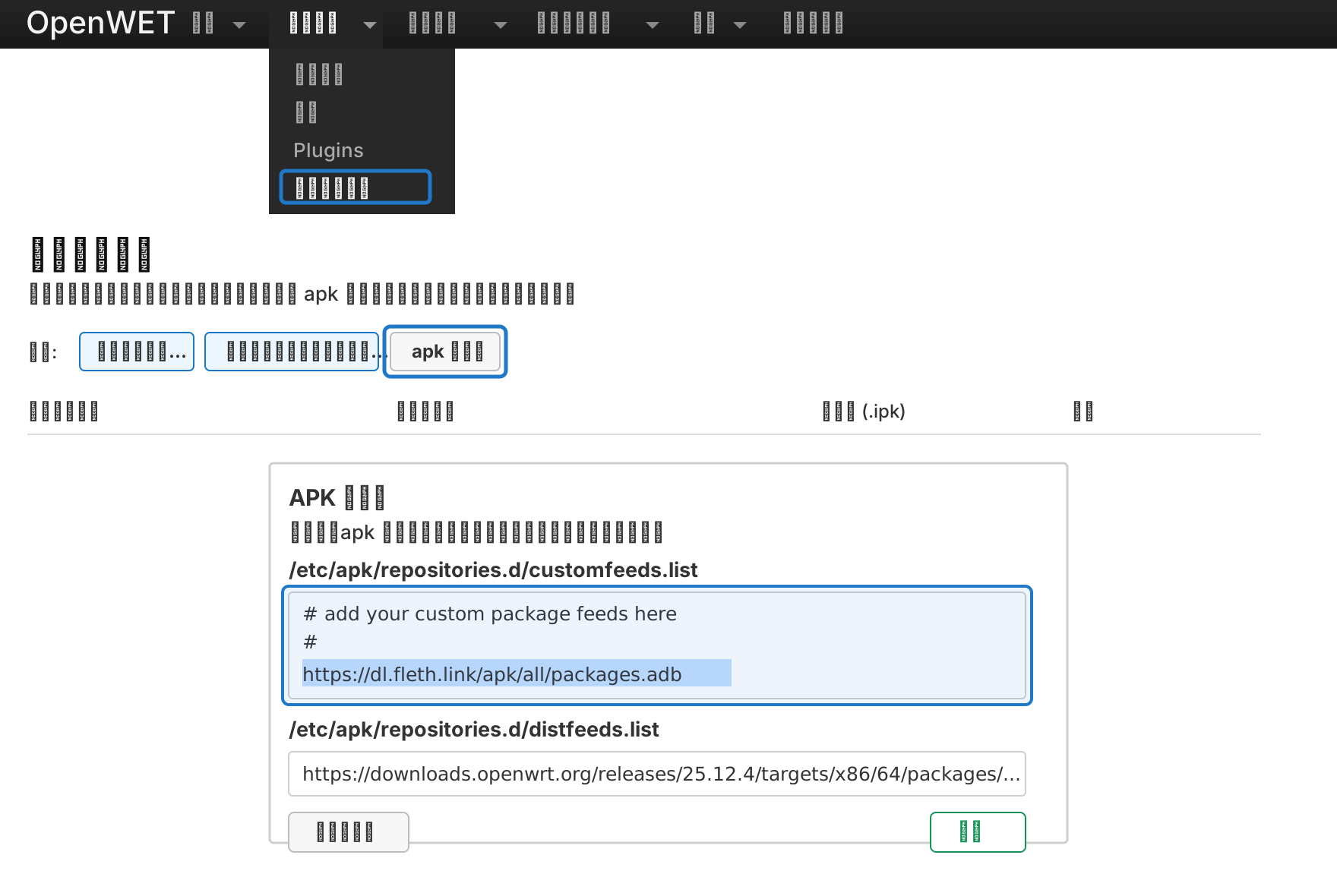
https://dl.fleth.link/apk/all/packages.adbCompletion check: the dialog closes and the software page is shown again with the configuration saved.
3. Update the package list
Section titled “3. Update the package list”- In
システム -> ソフトウェア, clickリストを更新….
If list update fails, return to the pre-install network check and confirm that wan6 lets the router itself reach IPv6.
Completion check: the package list refresh finishes without download or signature errors.
4. Install luci-proto-fleth
Section titled “4. Install luci-proto-fleth”- Search for
luci-proto-flethin the filter box. - Install the package.
If installation fails, confirm that the package list update in the previous step completed successfully.
5. Check after installation
Section titled “5. Check after installation”Refresh LuCI and confirm that you can see:
Network -> Flet'HFlet'H IPoEinNetwork -> Interfaces- If static IP components are installed,
Flet'H Static IPorFlet'H Static IP (Passthrough)
If LuCI does not change after installation, clear the browser cache or log in again.
The screenshots and paths above are for the OpenWrt 25.12 apk setup. If you use OpenWrt 24.10 or earlier, or if you want the complete package-feed details, see dl.fleth.link.